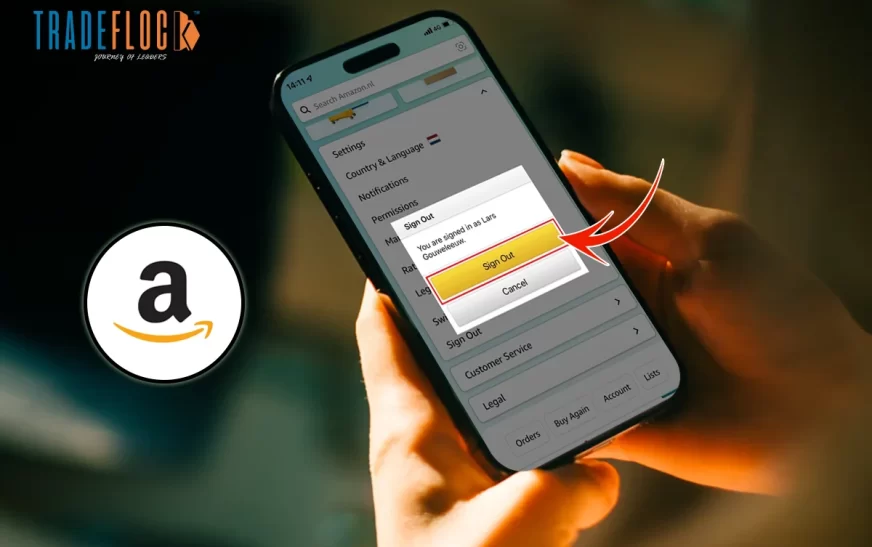
Understanding how to log out Amazon account is just as important as logging out of your bank account. Whether it’s on the shared PC at work, your friend’s tablet, or even just browsing at a coffee shop, logging out of your Amazon account after use ensures your private information remains safe and untampered with.
How To Log Out Amazon Account On Your Desktop
Wondering how to log out from Amazon Prime? Logging out of the computer is easy with the right guide.
- Open the Amazon webpage in your desktop browser.
- Browse the “Accounts & Lists” section in the top right corner.
- From the dropdown menu, select “Sign Out.”
And that’s it! Just like locking your car after leaving it, this simple action protects your Amazon information. Now you know how to log out Amazon account on your desktop, ensure it is logged out every time you use it on a public or a friend’s PC.
How to Log Out Amazon Account on Mobile
Whether you’re using an iPhone or Android phone, logging out on mobile is just as simple, but there are slight variations based on the device you’re using. So, here are the steps for how to log out Amazon account:
For iOS:
- Start by opening the Amazon app.
- Tap the menu at the bottom right.
- Scroll down and click on the account & help section
- Next, click on Your Name and tap the “Sign Out” button.
For Android:
- Start the Amazon app.
- Tap the menu icon (three horizontal lines) in the top left area.
- Scroll to “Settings.”
- Tap the “Sign Out” button.
Now that you know how to log out Amazon account on mobile, make it a good practice to do so afterwards, especially after ordering from someone else’s smartphone or tablet.
How To Log Out From Amazon Prime On Smart Devices
You may have a very valid question like “how to log out from Amazon Prime”? Smart TVs and Firesticks are signed into Amazon Prime or Amazon Prime Video automatically, and the same applies to Echo Show devices. If you’ve logged into Amazon Prime on a shared TV (for instance, an Airbnb), you will have to log out to avoid any unauthorised usage of your account.
Here’s how to log out Amazon account:
- Go to the Prime Video settings.
- From your Amazon account under Your Content and Devices, select “Sign Out of All Devices”.
Now this is the answer to your question ,“how to log out from Amazon Prime”? This not only lets you log out of that TV, but also every device connected to your account. It’s the right thing to do if you don’t know which devices you had previously logged in on.
The Risks Of Remaining Logged In
Staying logged into your Amazon account may seem convenient for quick purchases or tracking orders, but it also comes with potential risks, especially on shared or public devices. Below are some of the key dangers of not logging out properly.
- Unauthorised Purchases: Anyone with access to your device can make purchases using your saved payment methods.
- Saved Payment Info Exposure: Your credit/debit card details and billing address may be visible or used without your consent.
- Account Misuse: Someone could change your account settings, address, or even cancel or place new orders.
- Gift Card & Wallet Theft: If you have an Amazon gift card balance or credits, they can be spent by anyone who accesses your account.
- Personal Data Access: Order history, wish lists, and delivery addresses can reveal information about you and your household.
- Prime Benefits Abuse: Others could misuse Prime Video, Amazon Music, or other membership services tied to your account.
- Public/Shared Device Danger: Forgetting to log out on a library computer, hotel tablet, or a friend’s device can lead to serious privacy and financial risks.
- Children’s Accidental Purchases: If you’re logged in and your child uses the device, they could unknowingly place orders, subscribe to services, or purchase in-app content using your saved payment methods. Just knowing how to log out Amazon account can save you from spending money and headaches.
What To Do If The Sign Out Button Doesn’t Work?
On occasion, the sign-out button may not be responsive, particularly in older web browser versions or mobile apps. If this happens:
- Refresh the page.
- Clear your browser’s cache and cookies.
- Try a different browser (e.g., switch from Safari to Chrome).
- On mobile, force close the app, reopen it, and try again.
Still not working? Uninstall and reinstall the app. This often clears hidden bugs and restores full functionality.
Staying Secure On Public Devices
Public computers (those found in libraries or shared workspaces) are often running outdated software or have keyloggers installed. Keyloggers can monitor your key presses and record your passwords and card information.
If you log out and use incognito mode whenever browsing, you can reduce the chances of your information being stolen. If you were shopping on break from university or price comparison shopping at work, the cardinal rule is to know how to log out Amazon account, and do it every time.
Also read: Top 8 YesMovies Alternatives for Free Movies & Shows
Conclusion
Knowing how to log out Amazon account isn’t just for someone who excels in technology. It is a simple safety measure that everyone should ideally know, similar to locking your car or turning off the lights when leaving your house. Whether you’re buying products for personal use, as gifts, or for work, logging out helps protect you and your digital space.
Next time you’re browsing deals from a friend’s house or streaming Prime Video from a hotel room, remember to log in, shop responsibly, and, for goodness’ sake, log out.